


Please make sure you have a HubSpot account to use this theme. If you don't have one, you can visit this link to create a HubSpot account.
You can install your theme from the HubSpot Marketplace or a .zip file.
If you're installing the theme from the HubSpot Asset Marketplace, simply click the install button on the theme page and then follow the instructions.
If you're installing the theme from a HubSpot Asset Marketplace, simply click the install button on the theme page and then follow the instructions.
If you have a .zip file of your HubSpot CMS theme, follow these steps to install it to your account:
Log in to your HubSpot account.
In the upper right corner, click the Settings icon (looks like a gear).
Click on Tools > Website > Themes in the left sidebar.
You'll see the "Upload Theme" button in the upper right corner of the screen. Click on it and then choose the zip file you have.
If you completed the steps successfully, you should see the theme and its templates when creating a new page.
For more information on theme installation, visit the HubSpot reference documentation..
It's essential to install HubSpot's local development tools, either globally (recommended) or locally. To learn how to install these tools globally or locally, refer to the following link..
Once you've installed HubSpot's tools, download the provided ZIP file to any directory, e.g. c:\hubspot\
Unzip the ZIP file and assign a desired name to the directory, e.g., c:\hubspot\client-education.
Then, open the console and navigate to the directory where you downloaded the ZIP file. Next, enter the following command: "hs init".
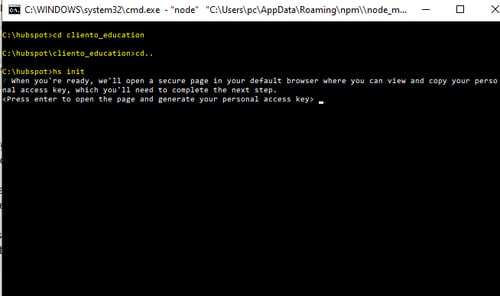
Press "enter," and a browser will open to select the account where you want to install the template. Next, copy the key and paste it into your console.
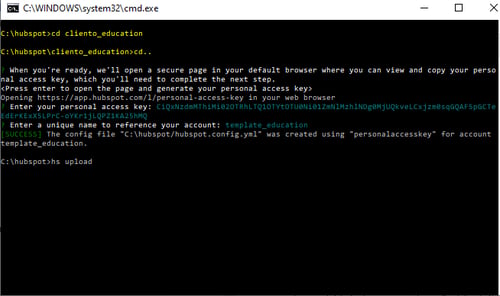
Finally, enter the command hs upload , where is the directory where you downloaded the zip (client_education), and is the name of the directory in your HubSpot account where the template will be installed.
After completing the installation, the template is ready to be used. This template offers spaces to drag and drop elements, allowing you to organize and apply custom styles to different sections of a page. You can review the following link for more information.
The template we provide includes 9 pre-designed pages that can be used as a base to facilitate the development of school-focused websites.
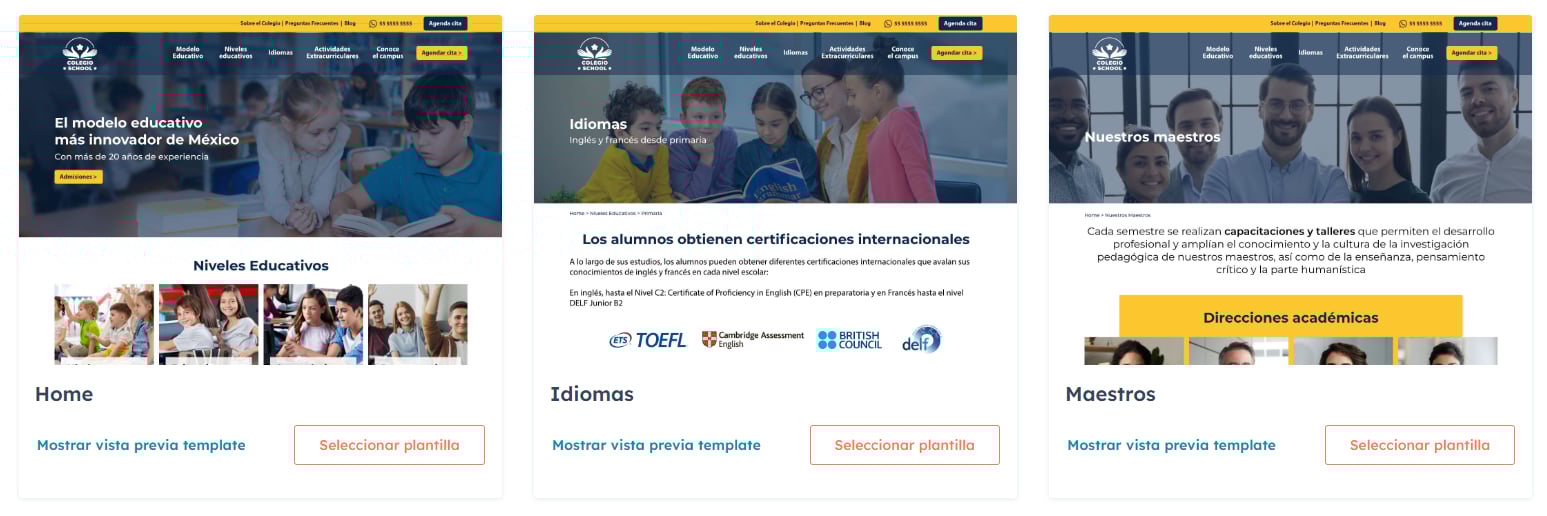
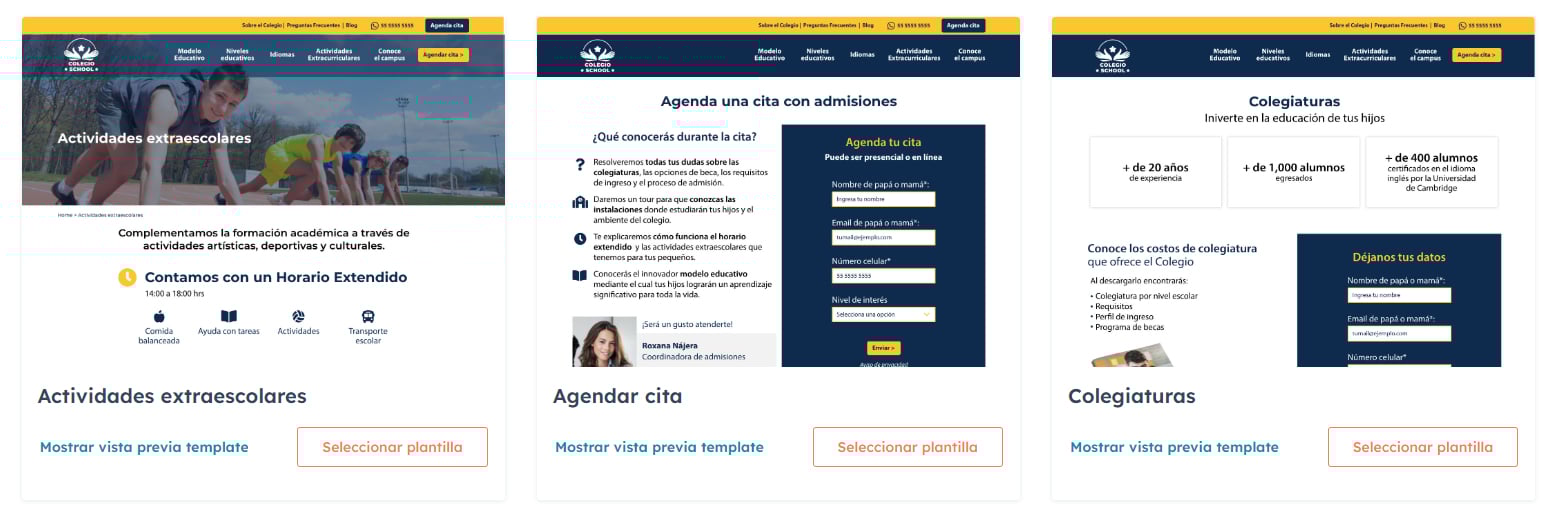
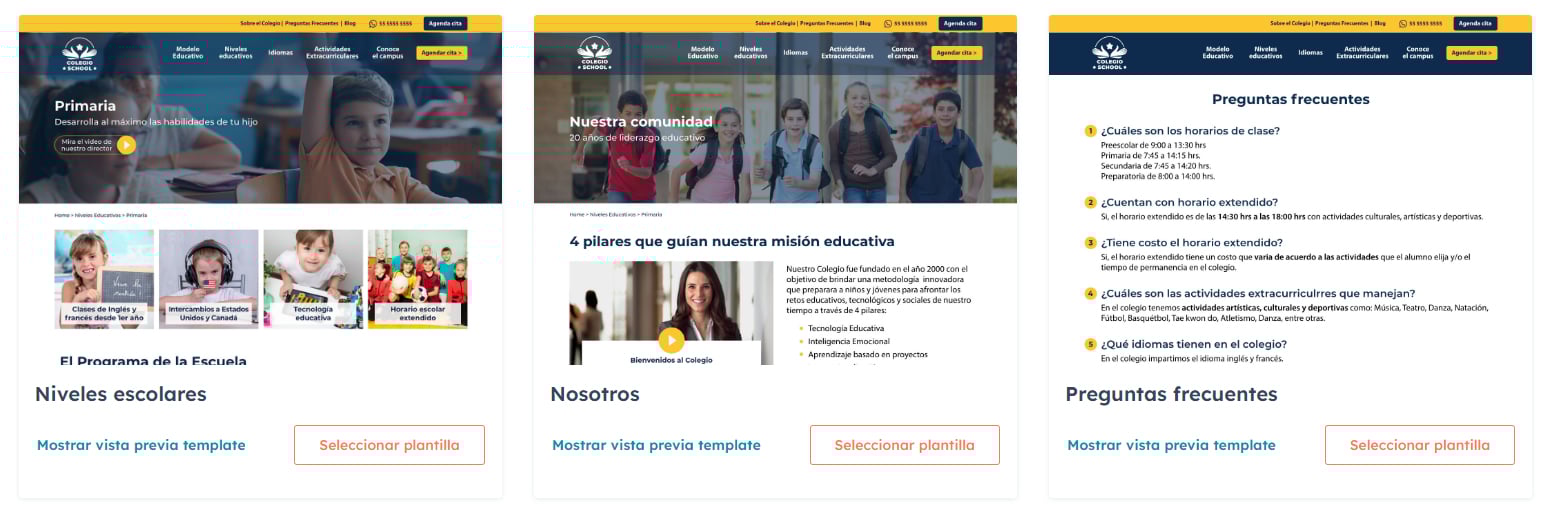
The home page is the website's main page, containing the following sections and modules in the following order:
File location: /templates/home_page.html
On this page, you can provide information about your school and highlight its values. It contains the following sections and modules in the following order:
File location: /templates/nosotros_page.html
If you need to provide information about different school levels, such as primary, secondary, high school, etc., this template can be very helpful. The template includes the following sections and modules in the following order:
File location: /templates/niveles_page.html
If you need to provide information about extracurricular activities offered at your school, this template can be very useful. It is organized with sections and modules in the following order:
File location: /templates/actividades_extraescolares_page_page.html
On this page, you can highlight the languages taught at the school. It contains the following sections and modules in the following order:
File location: /templates/idiomas_page.html
This page showcases information about your teaching team with photos and roles. It includes sections and modules organized in the following order:
File location: /templates/maestros_page.html
It's essential to address questions about school processes and activities, so we've developed this template to provide all the necessary information. It includes sections and modules organized in the following order:
File location: /templates/faqs_page.html
If you need a landing page with a classic two-column admission format, you can use this template. It includes sections and modules organized in the following order:
File location: /templates/admisiones_page.html
If you need a landing page to provide tuition information in a two-column format, you can use this template. It includes sections and modules organized in the following order
File location: /templates/colegiatura_page.html
This template features 18 ready-to-use sections.
This section includes a banner module where you can insert a full-size background image, along with a title, text, and an optional button to add a YouTube video by URL or upload an MP4 file. The video will play in a popup.

This section features a module that allows you to include a background image, text, and a link. The purpose of this section is to showcase the different educational levels offered by the school.

This section presents a masonry layout consisting of 5 images with colored or image backgrounds, each accompanied by text.

his section presents 2 columns including an image alongside an optional icon, and text with the possibility to add a button.

This section is composed of 2 columns designed to highlight Call to Actions.

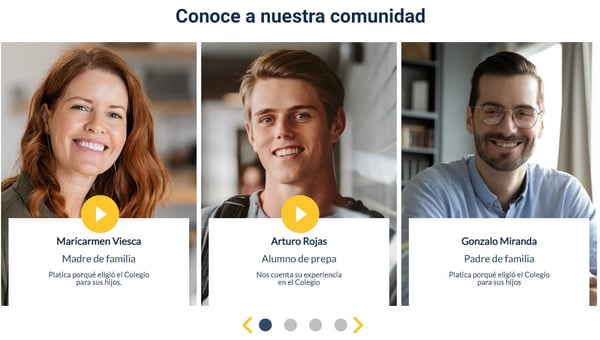
This carousel includes images and text, with an option to add a YouTube video by inserting its URL or uploading an MP4 file. The video will play in a popup.
In this section, you will find a title, a description, and four columns to display logos of various partnerships.

This section has 2 columns, one to display text and another with a module to play YouTube videos by inserting their URL or uploading an MP4 file. The video will play in a popup.

This section has four columns that include images and text to highlight some differentiators.

This section features a carousel with images and supporting text.

This section presents the mission and vision in a two-color format.

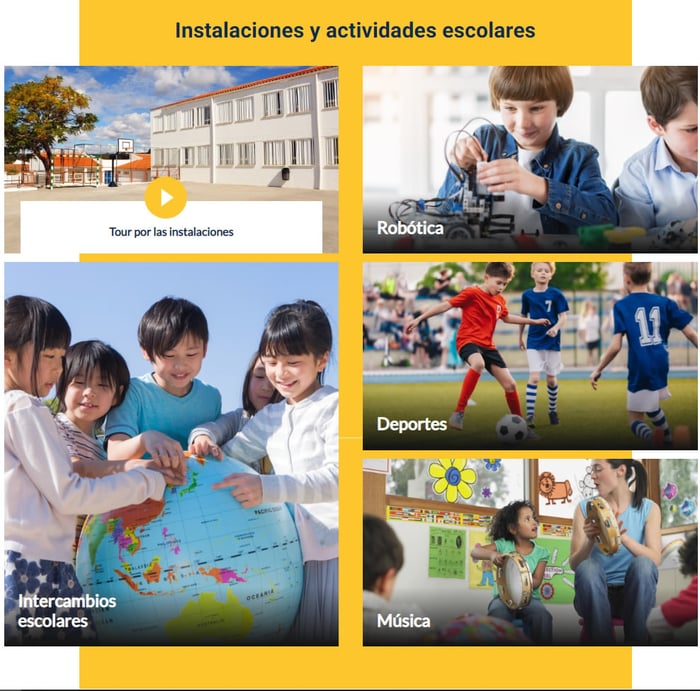
This section presents a grid layout consisting of 6 images with colored or image backgrounds, each accompanied by text with the option to play YouTube videos by inserting their URL or uploading an MP4 file. The video will play in a popup
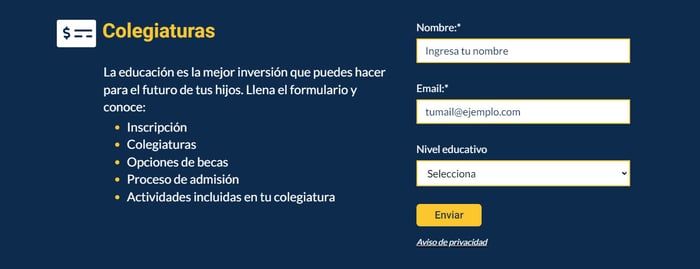
This section consists of two columns with a form and text on a colored background.
This section has two columns with video and a background, with the option to play YouTube videos by inserting their URL or uploading an MP4 file. The video will play in a popup.

This section presents a masonry layout consisting of 10 images with colored or image backgrounds, each accompanied by text.

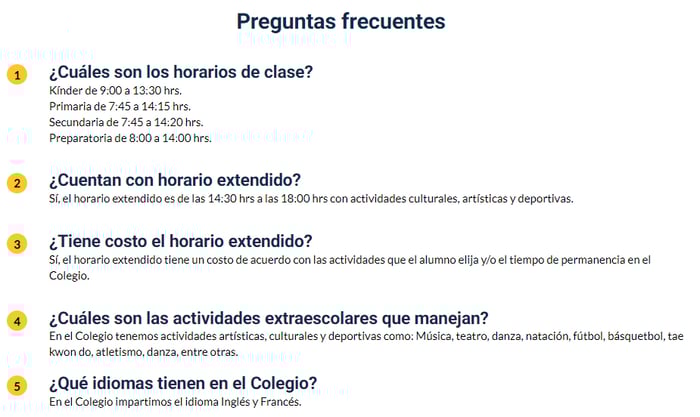
In this section, you will find a format for answering frequently asked questions.
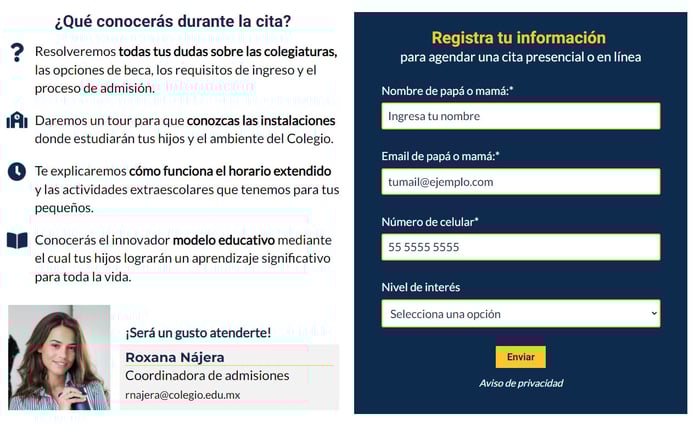
In this section, you will find 2 columns, 1 with a description and another with a form.
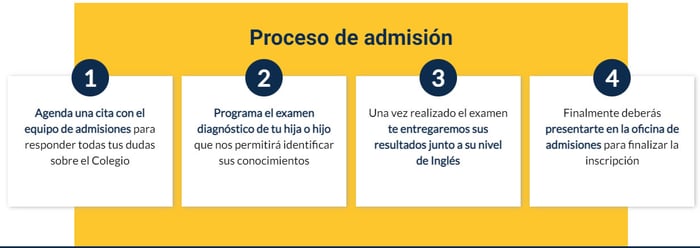
In this section, you will find a box format that presents numbered steps and detailed descriptions to follow for the admission process.
To edit a theme setting, please go to Marketing > Files and Templates > Design Tools and select the theme on the left side. Then click the Preview button.
There are plenty of settings you can find in the theme options. The complete structure is as follows:
For more information, you can visit the following link.
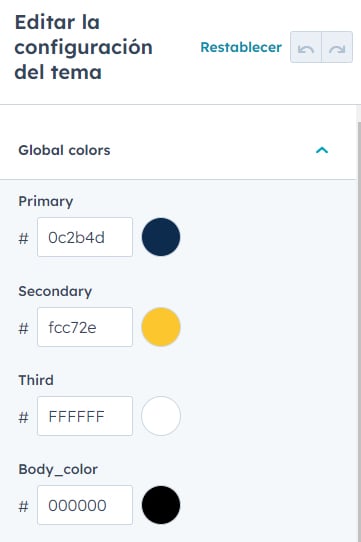
The default color settings of the template are as follows.
The Header is a global module which has 2 sections; the first section has the option to add a menu and a phone number.

The second section has the option to add the Logo and the main menu of the site.

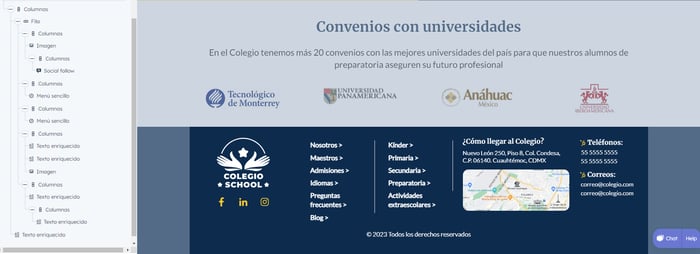
The Footer is a global module consisting of a section containing 5 columns. The first column is for the logo, the second and third columns are for embedding 2 simple menus, the fourth column is for the address, and the fifth column is for contact information. But these modules are 100% customizable.
All images/photographs used on our demo site and all their rights belong to their creators/owners. All of them have been collected from paid or free image providers that offer copyright licenses.